
You usually know what you need before you know where the software put it. A client's name, a phone number from a voicemail, an invoice number from an email, or a word such as “group” can be enough to get started. PracticeRunner search turns that clue into a direct path.
Open search from the main navigation, or press Cmd+K on Mac and Ctrl+K on Windows or Linux. Results update as you type and stay grouped by what they are: clients and contacts, cases, appointments, billing documents, settings, and help.
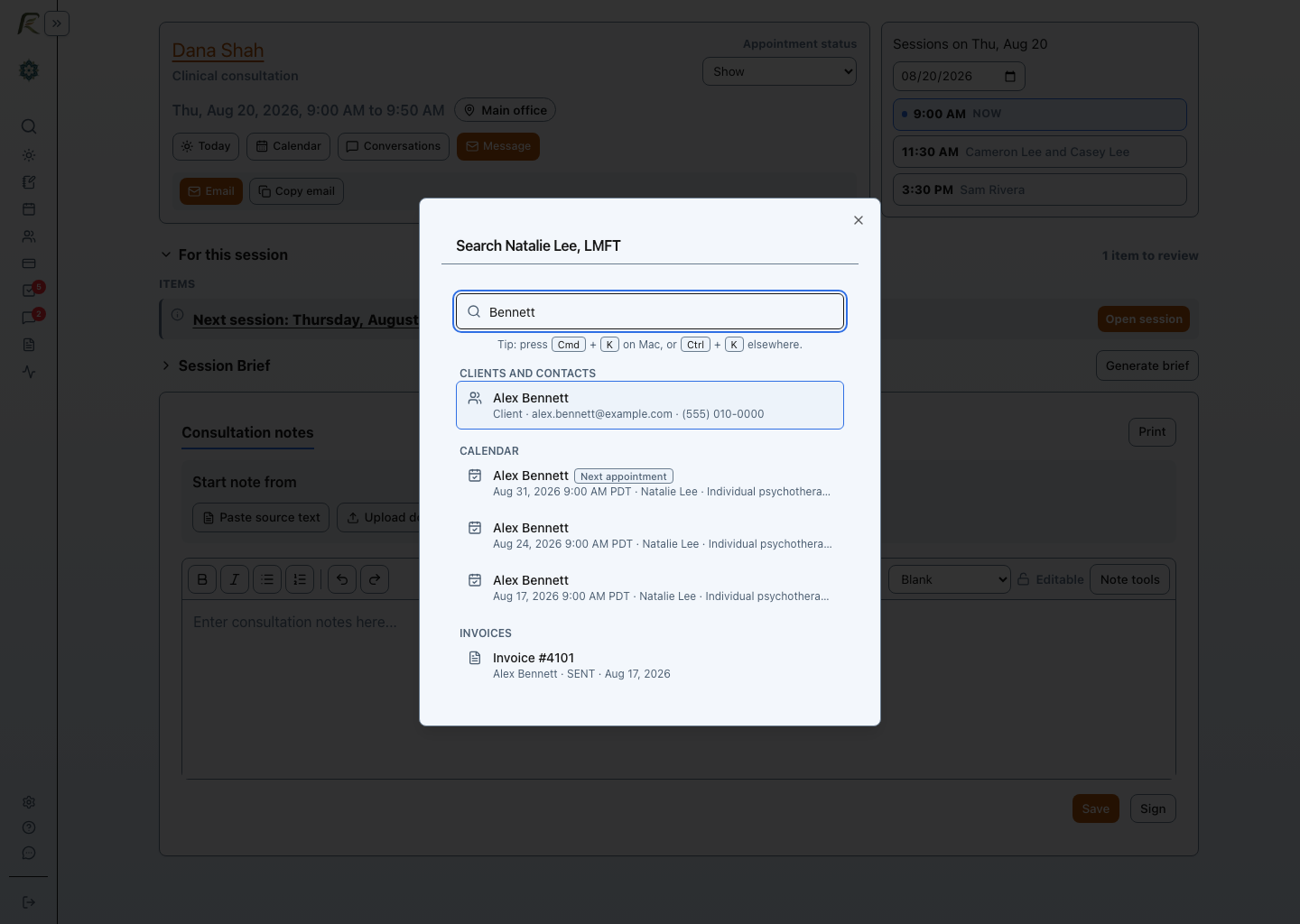
A name should lead to the person first
When you search for a client or contact, the person's profile appears before related appointments and documents. That ordering matters. Most of the time, the name is the beginning of a task, not the task itself. You might need the profile now, then the next appointment, an invoice, or another connected item a moment later.
Numbers are useful when names are not
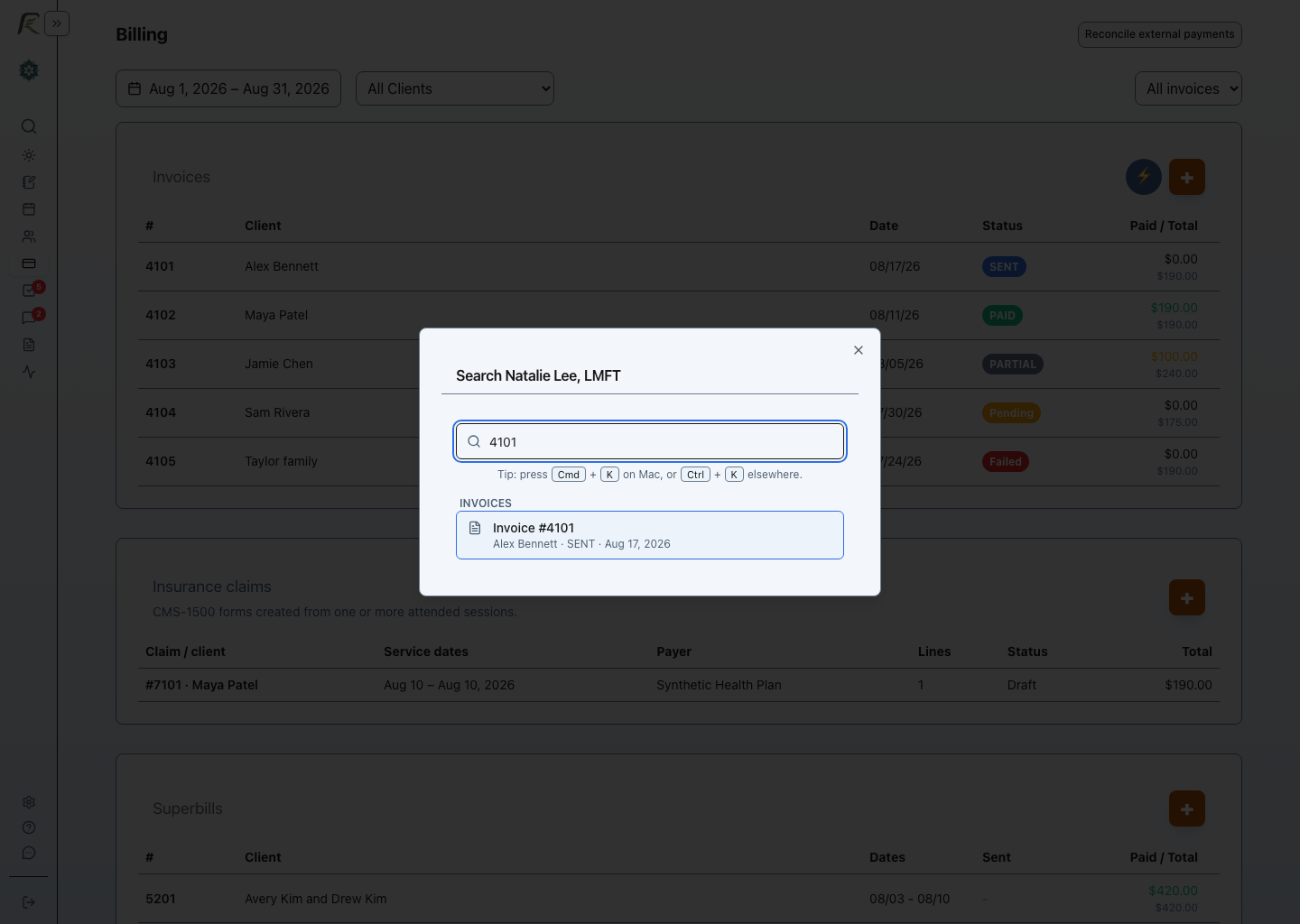
A billing question often arrives with a document number. Search the invoice, superbill, or statement number directly instead of opening a billing list and reconstructing the date or client from memory. The result includes enough context to confirm the client, document status, and date before you open it.
A phone number can be the whole starting point
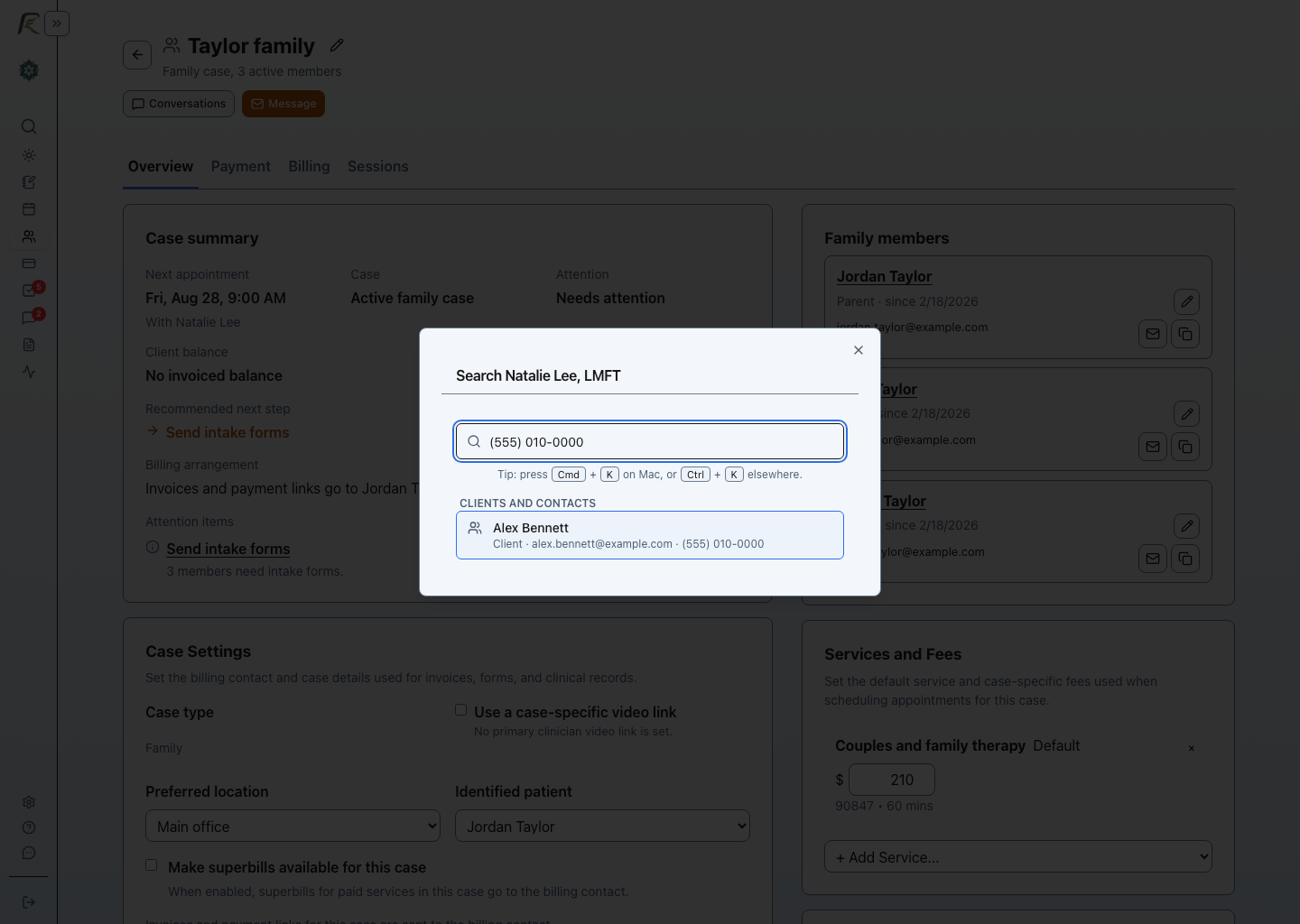
A missed call or voicemail may give you a phone number before it gives you a useful name. PracticeRunner can match a stored client or contact phone number even when common punctuation is included. That makes the search box a practical way to identify the person and continue to the right profile.
Search can answer “where is that setting?”
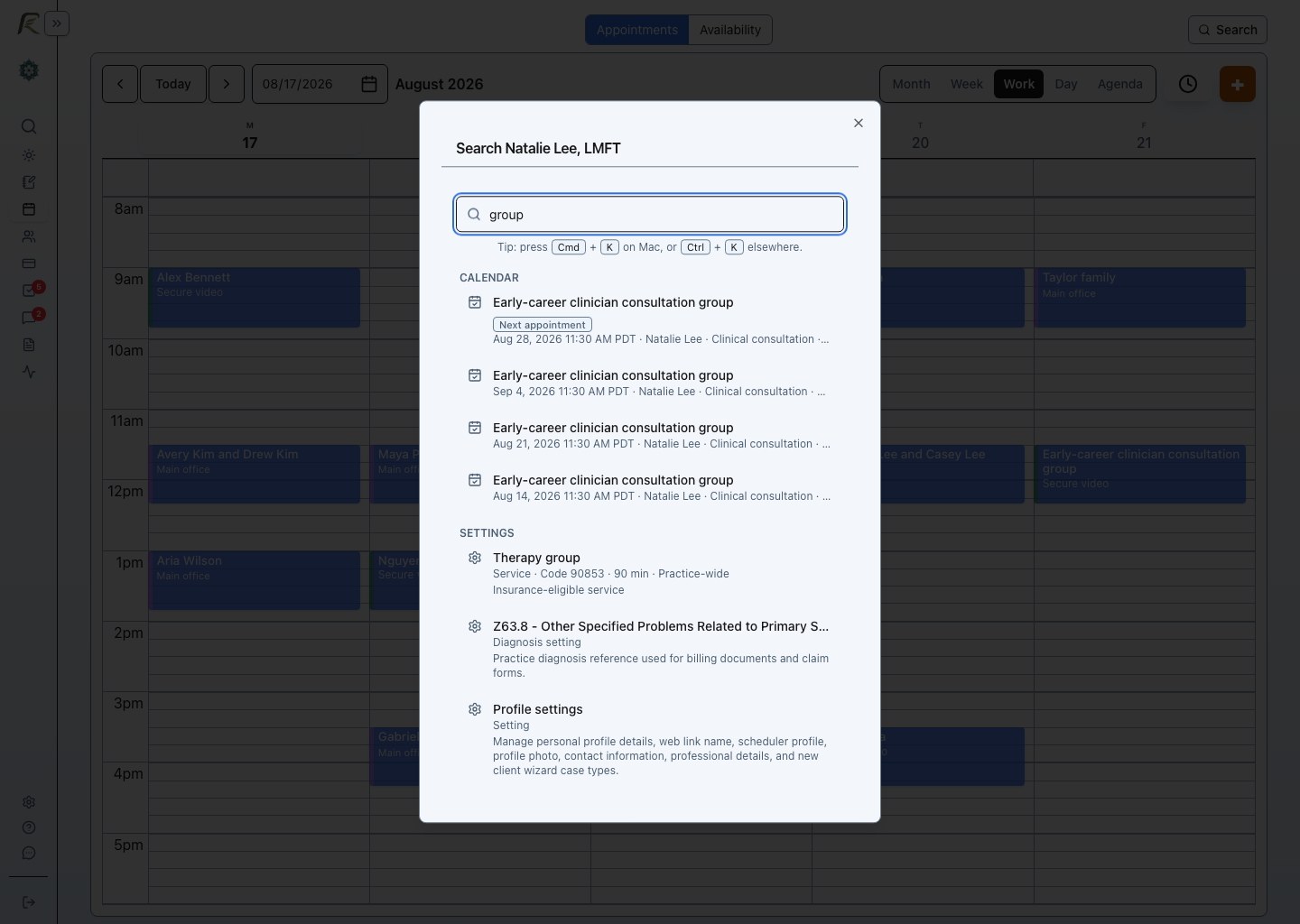
Some searches are not about a person or document. A broad term such as group, portal, billing, or reminders can surface both the settings that change the workflow and the help articles that explain it.
This creates a useful choice. If you already know what to change, open the setting. If you need context first, open the guide. Search does not require you to remember whether the answer lives under General, Billing, Portal, Services, or somewhere else.
Keep the next action close
The practical power of search is not that it finds more things. It reduces the distance between recognizing the next task and opening the place where you can complete it. That is useful during a client call, between sessions, while checking a payment question, or when configuring a workflow you do not visit every day.
The Searching PracticeRunner help guide lists supported result types, keyboard controls, provider-scope behavior, and common search examples.